Sign-in methods
Secret Squares first. Plus everything people already have.
Secret Squares need nothing but the device the user already works on. Authenticator apps and security keys are there for those who already have them.
Three ways to sign in, one choice
At set-up, people choose how they will sign in: Secret Squares, an authenticator app or a security key. They can add more later.
GRID · Secret Squares
Secret Squares in depth
A method built on Secret Squares that turns the brain’s ability to remember shapes into a secure one-time code.
Choose your squares
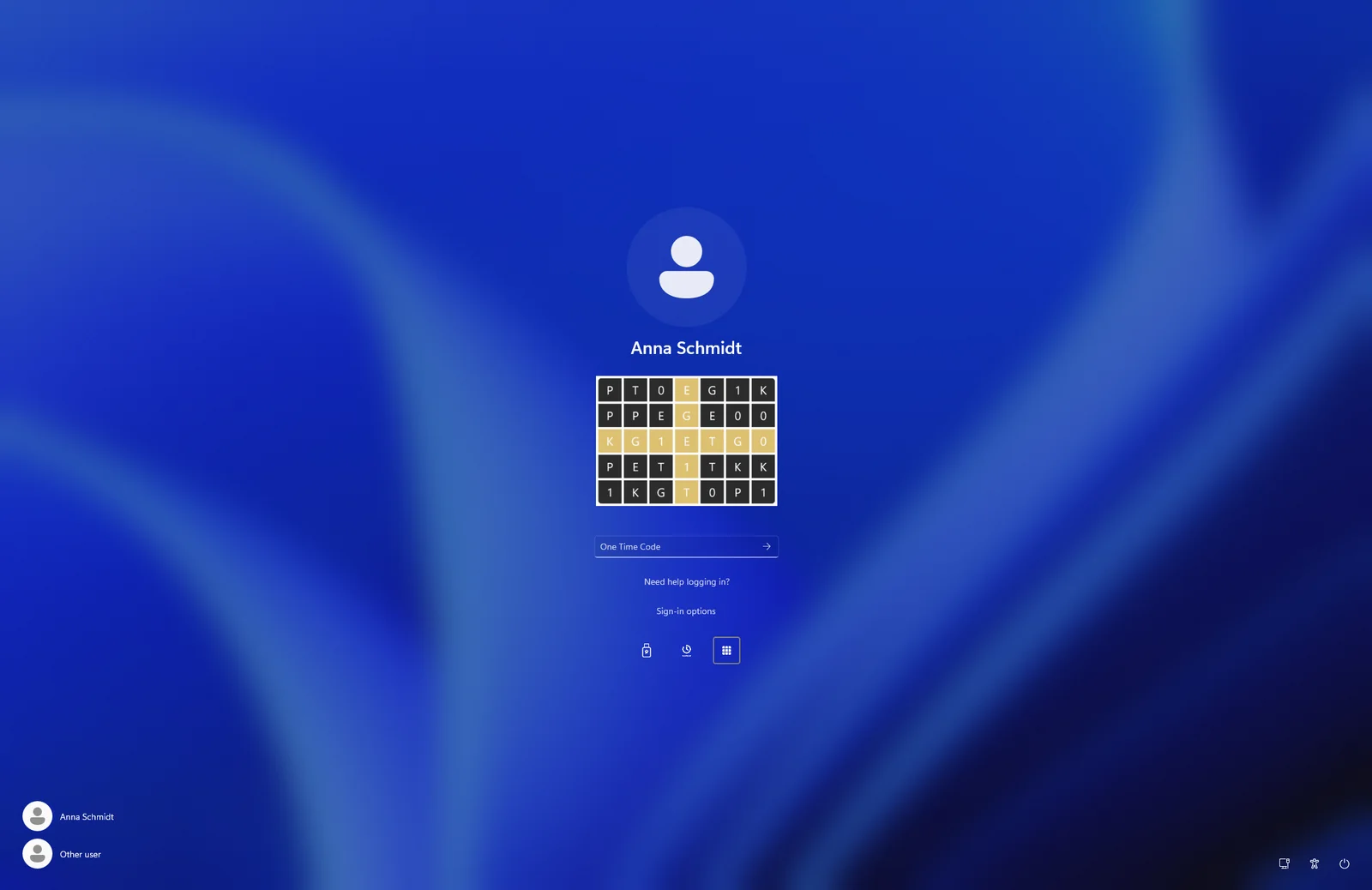
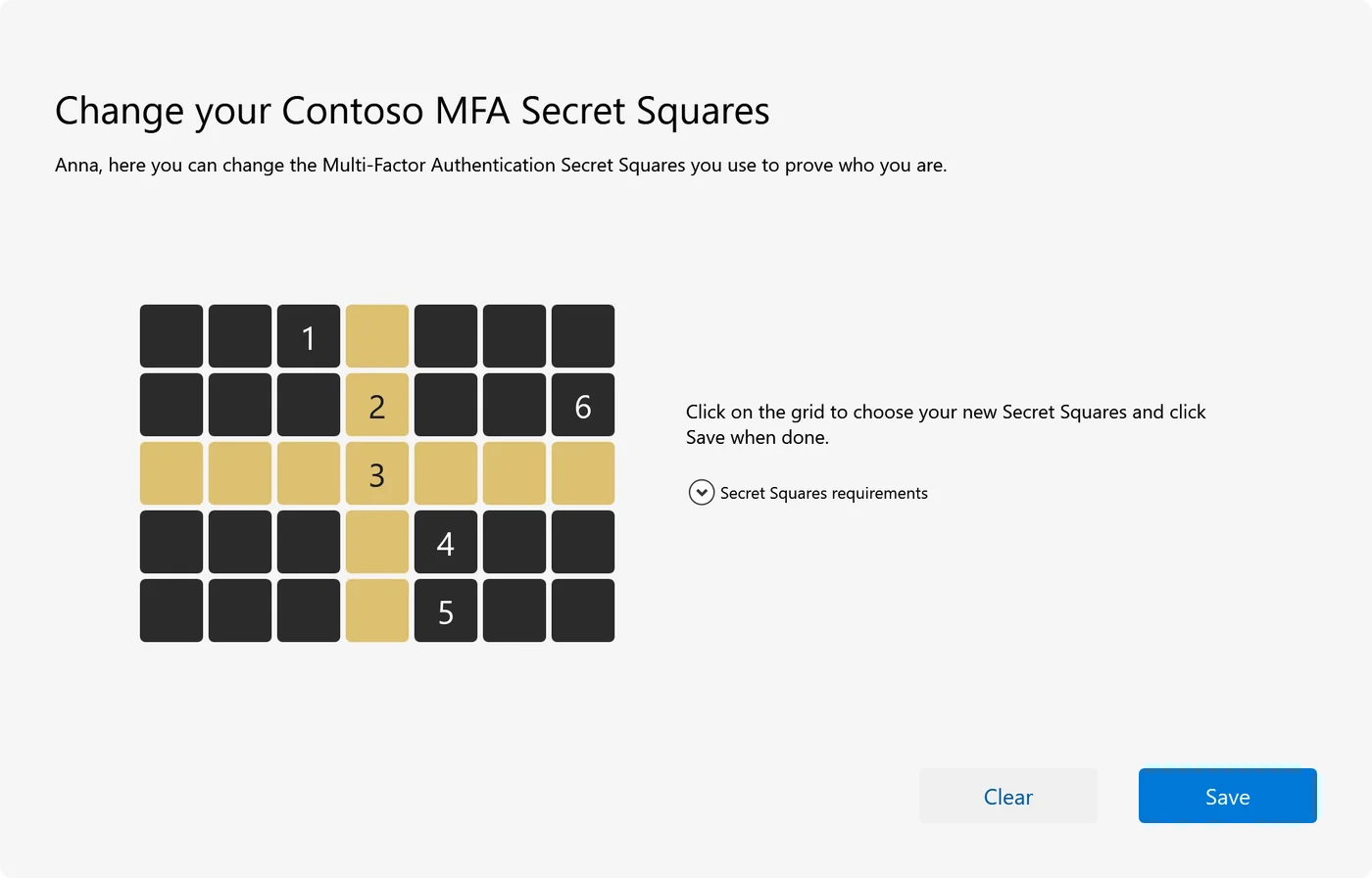
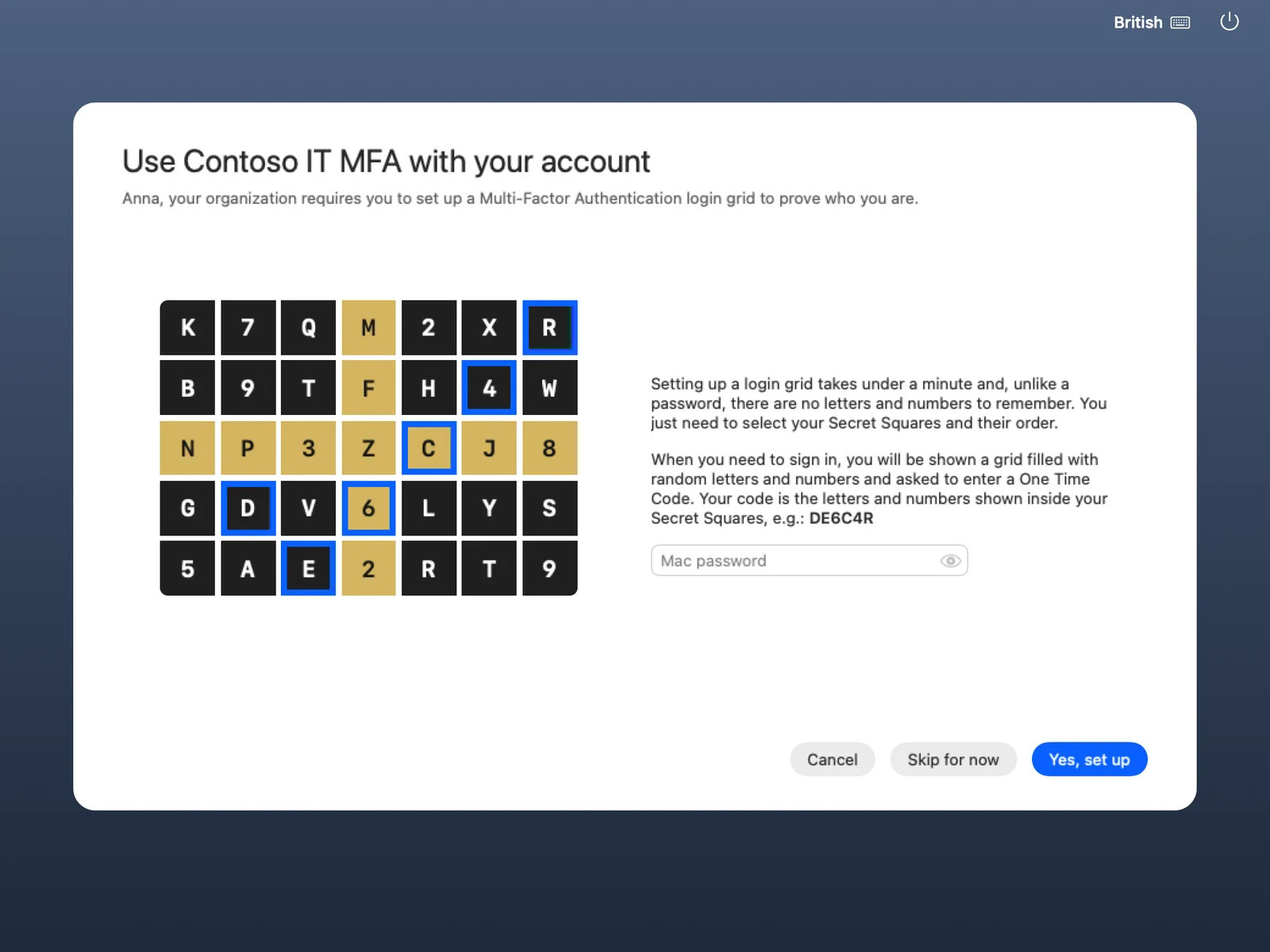
On first use, a short wizard asks the user to click a few squares in an order only they know. A square may be chosen twice, a straight line is not allowed, and your organisation sets the minimum. The chosen squares stay secret.
The device shows a grid
The characters in the grid are calculated from the identity of the PC or browser (HMAC-SHA512, keyed by the device’s ID) and change every 30 seconds.
The squares give the code
The user reads the character in each of their squares, in the order they chose them, and types them as the code. The gold cross on the grid is just for orientation. Every code works once.
Signed in
Password or not: with Secret Squares and the linked device the user has proved two factors, right at the familiar login window.
What else it does
- Passwordless: the grid alone can replace the password at the Windows logon and the Mac login window.
- Offline: at the Windows logon the grid needs no network.
- Device policy per customer: open, first use (the default) or approval required.
- Approve a new computer or browser from one the user already uses.
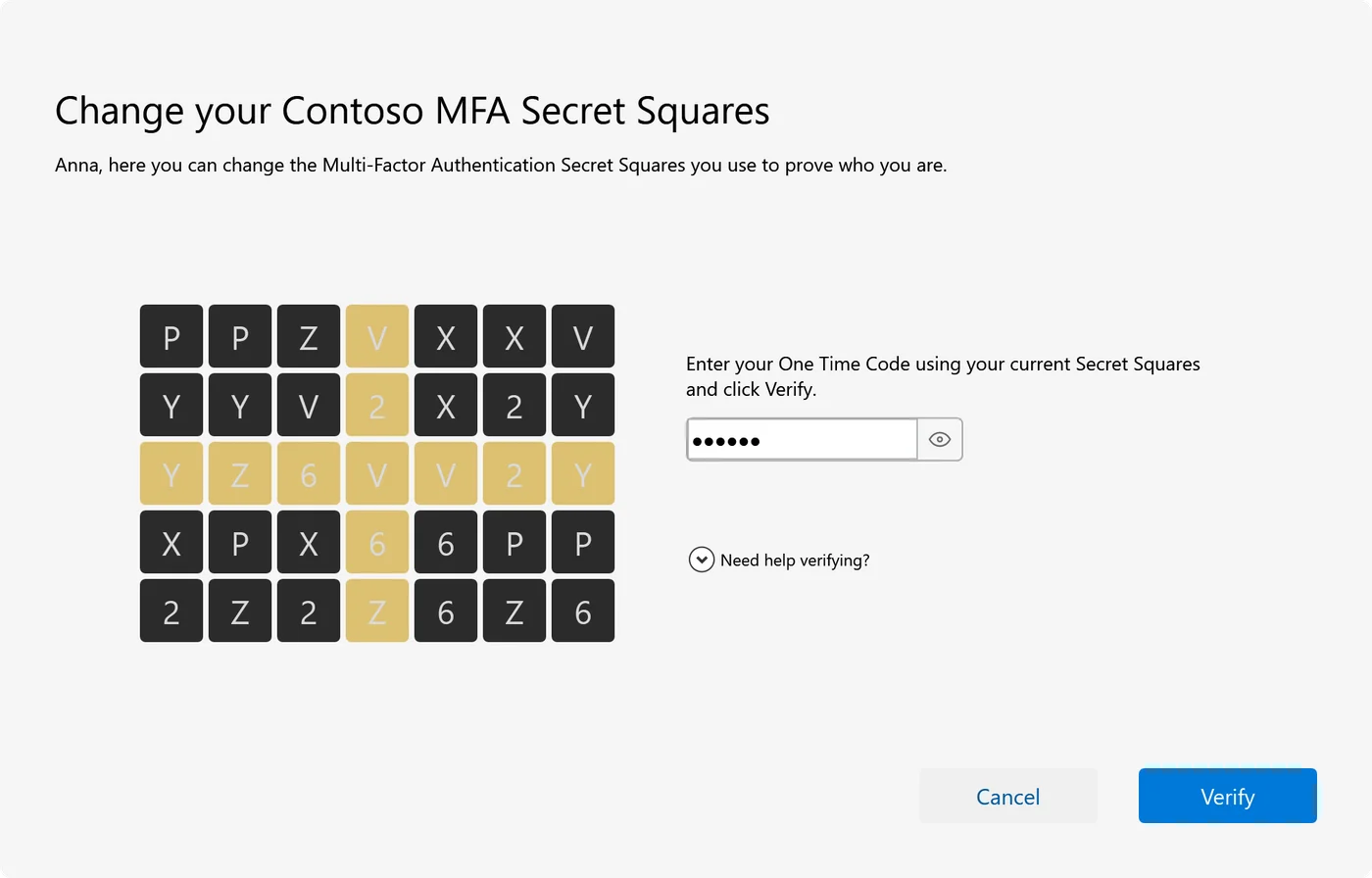
- Forgotten squares? Users choose new ones at the logon screen with a code sent by email.
- "Show grid" in the tray or the Mac menu bar turns the user’s own PC into the code source for VPN and SSH prompts.
OATH · Authenticator apps
Authenticator apps, if people already have one
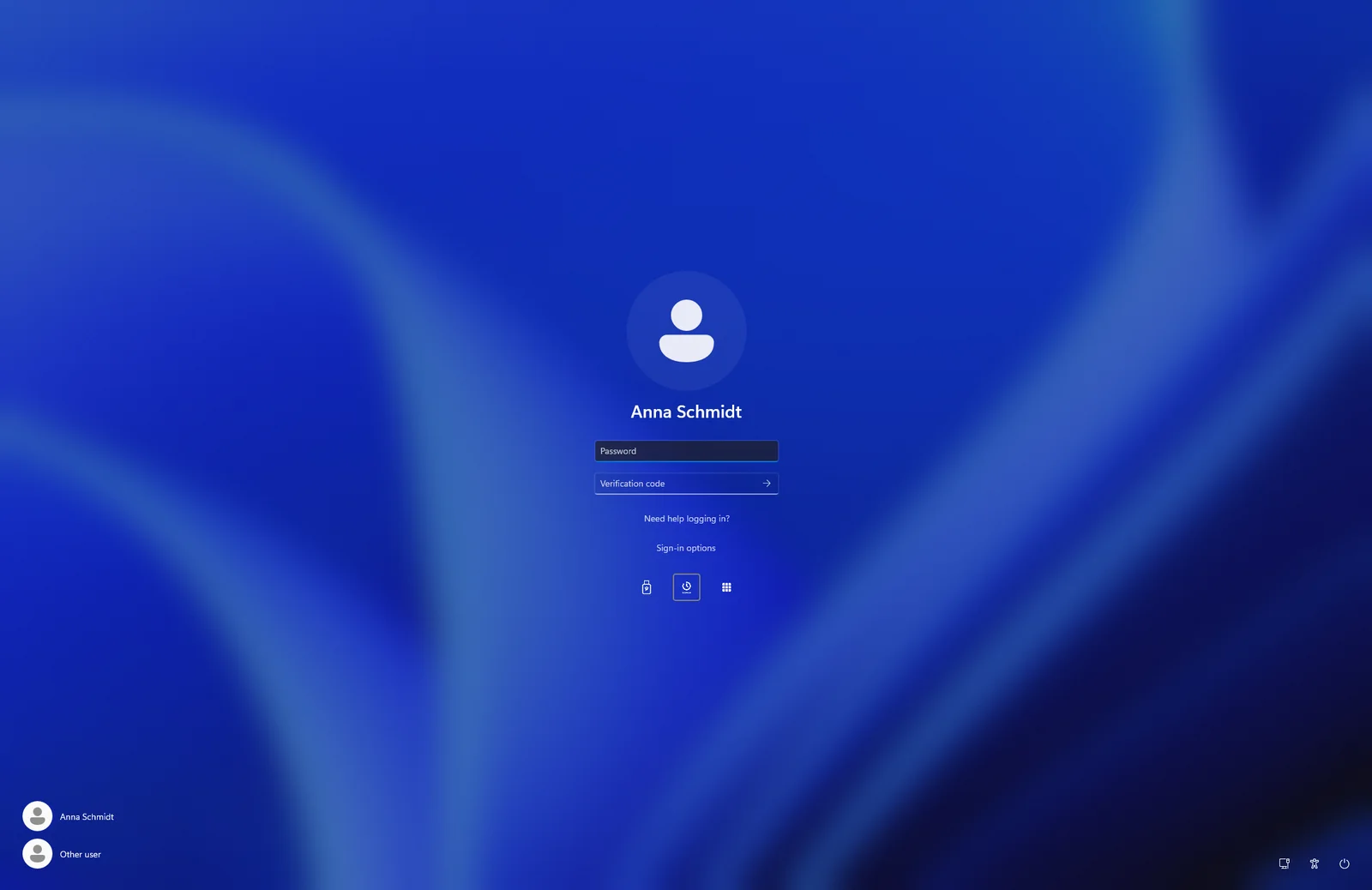
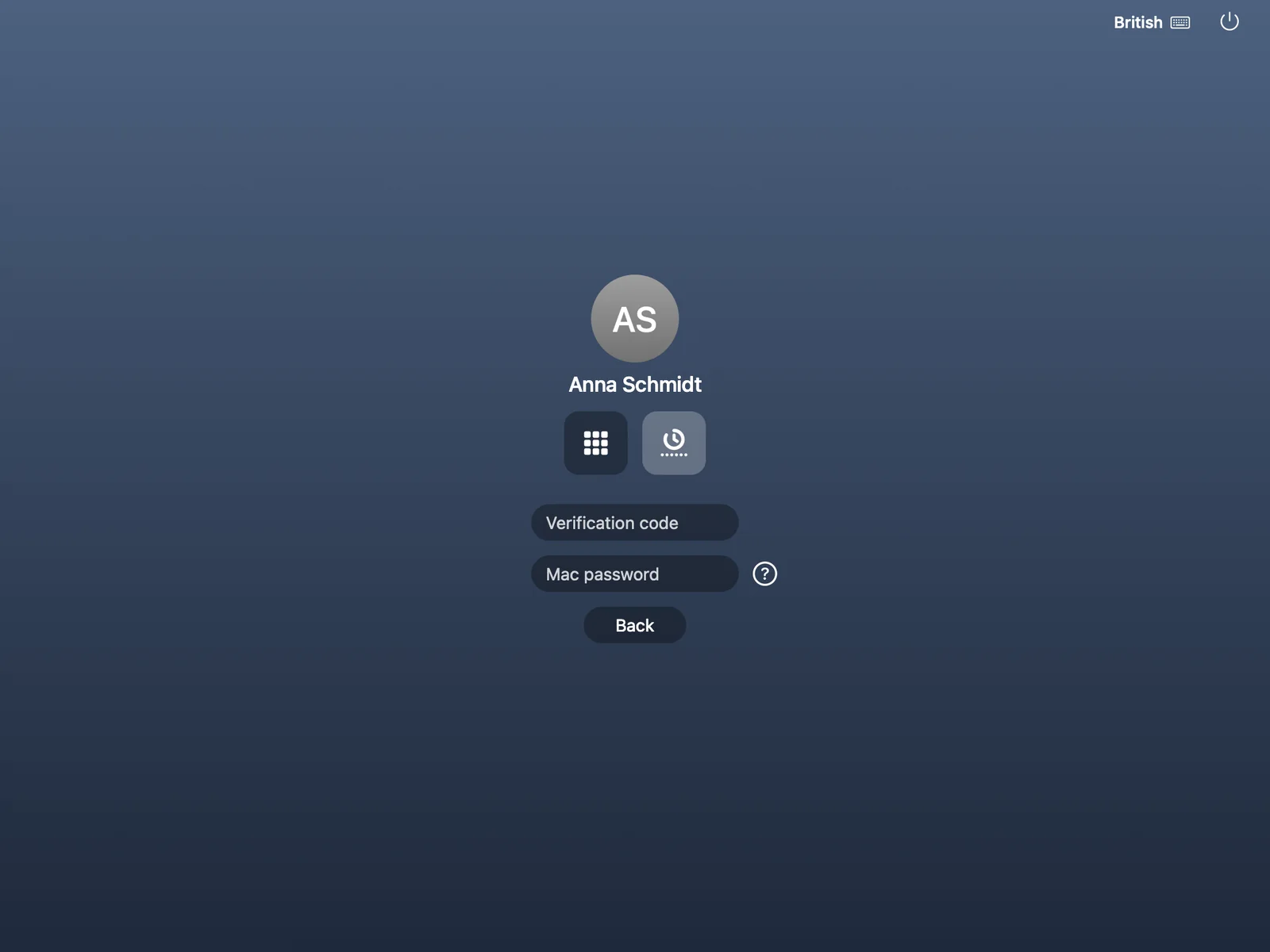
Users who already use Google Authenticator, Microsoft Authenticator or another authenticator app can use it with Twin Verify. It is optional.
- Works at the Windows logon (also offline), at the Mac login window, with RADIUS and VPN, and for web sign-in.
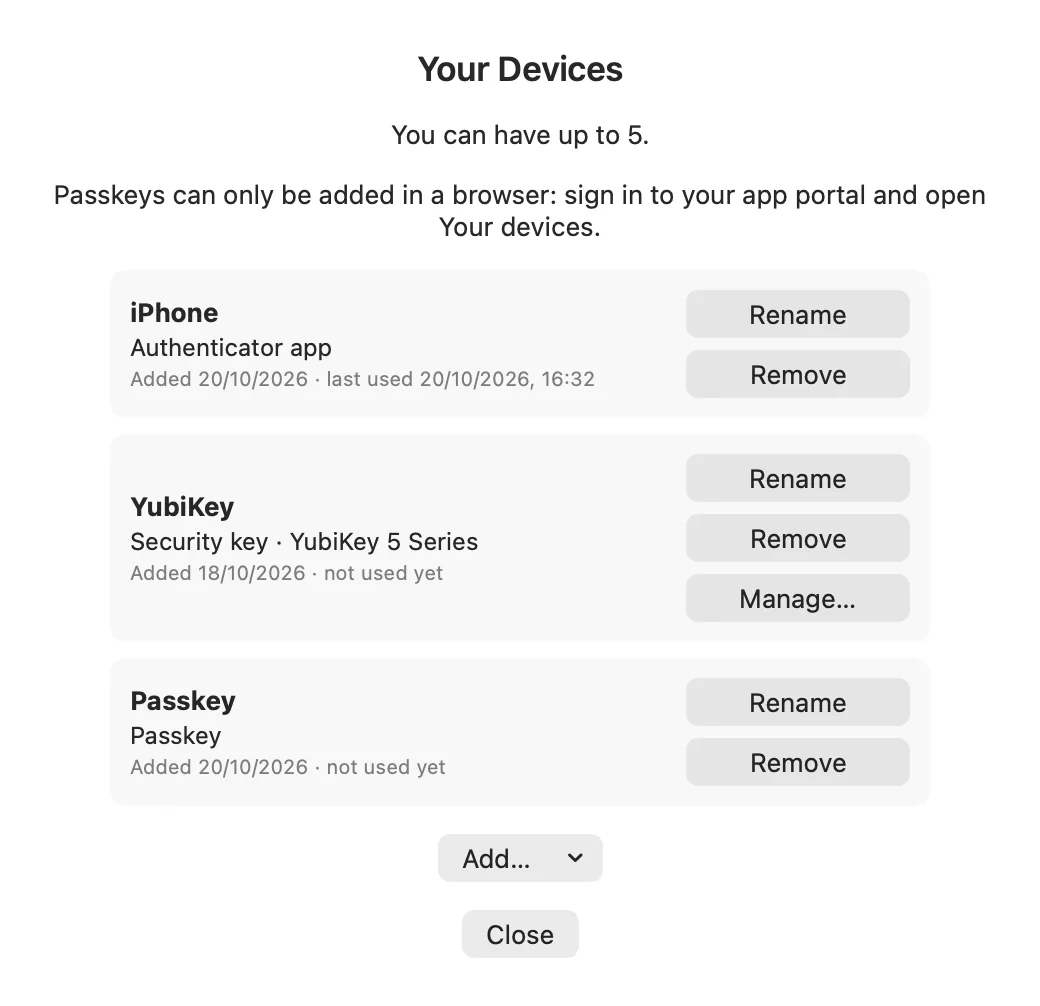
- Users add and remove their apps themselves under "Your devices"; an email tells them when an app is added.
- Nobody has to install anything: Secret Squares keep working for everyone else.
FIDO2 · Security keys and passkeys
Security keys and passkeys
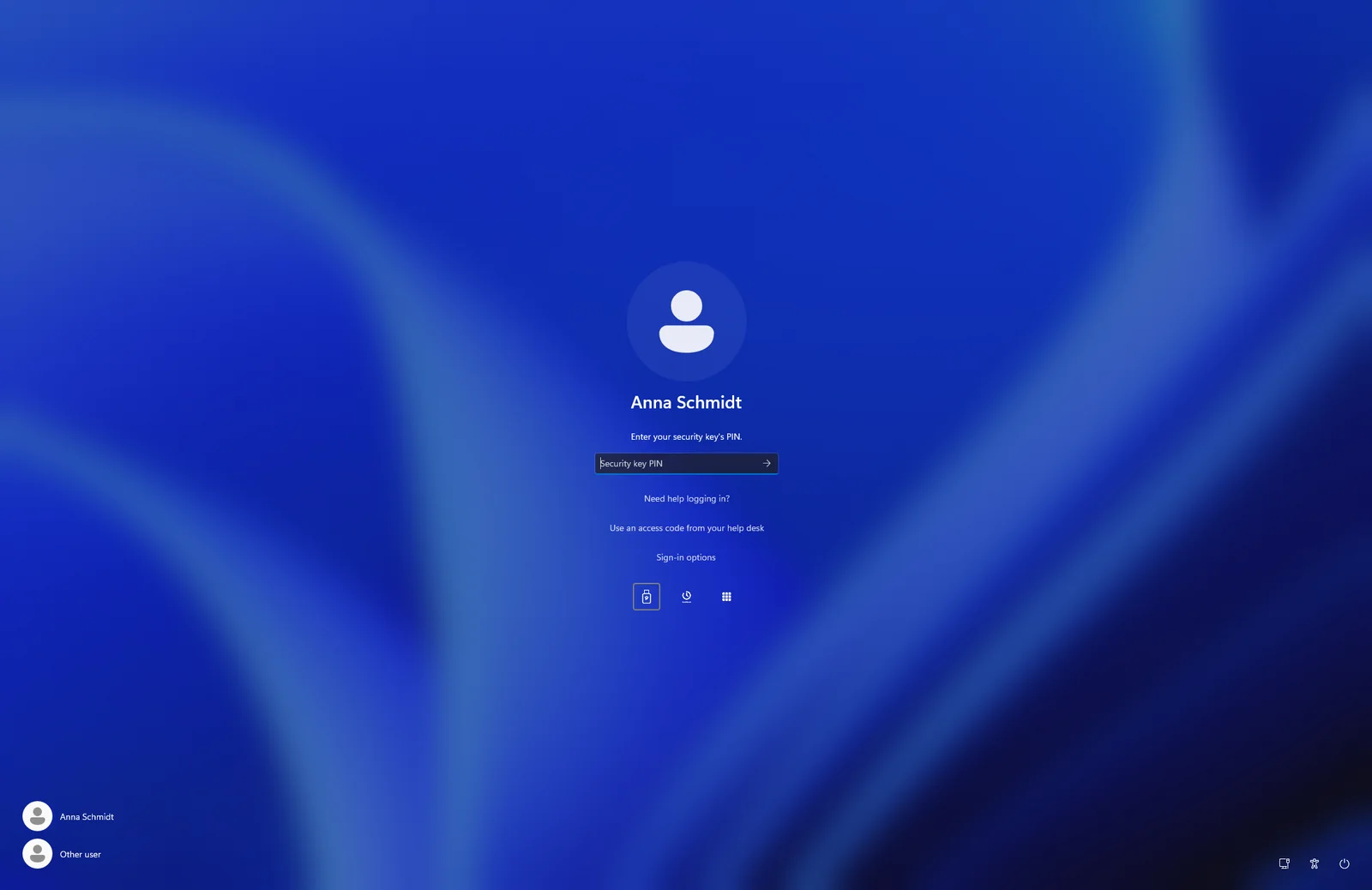
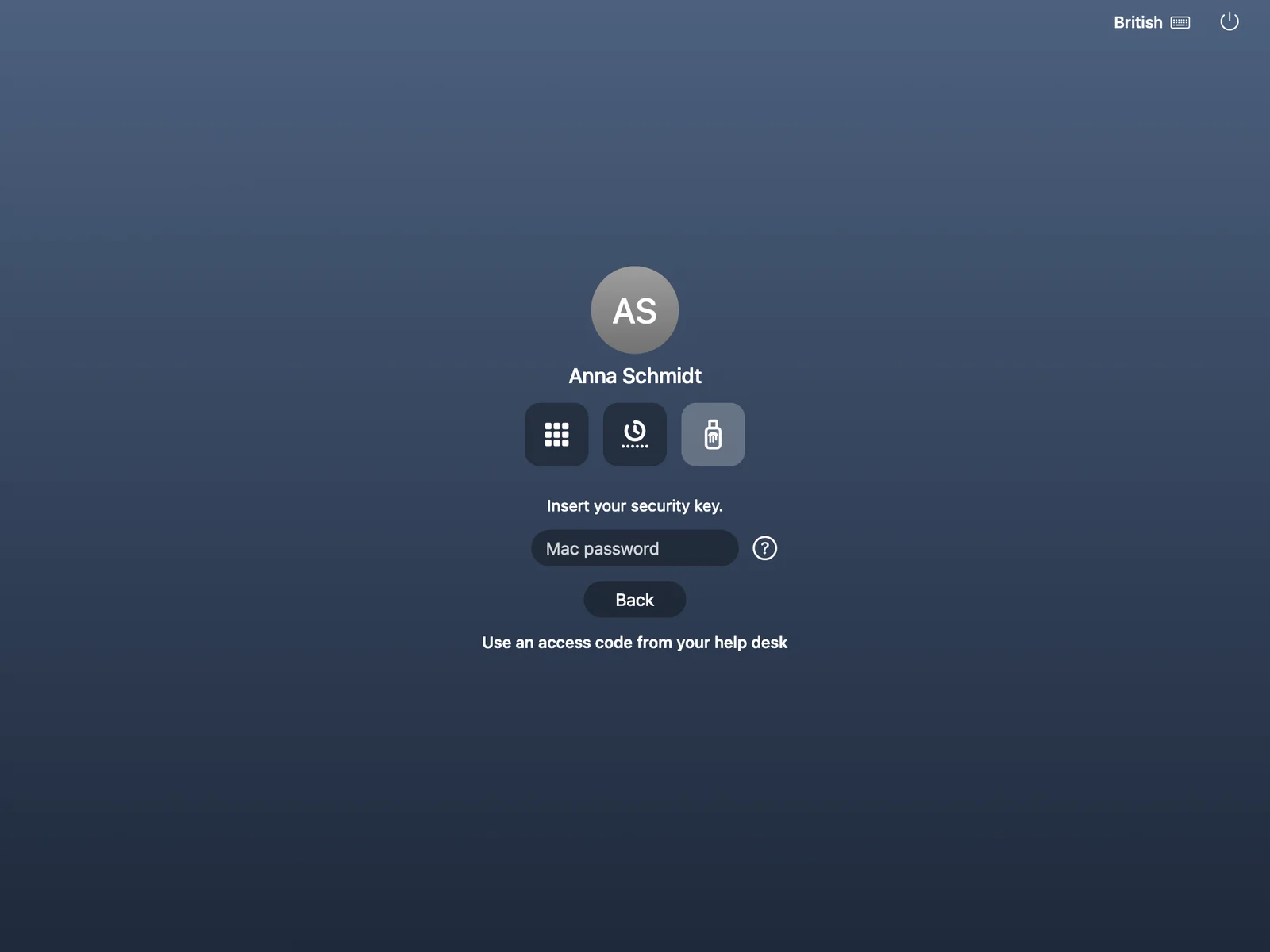
FIDO2 security keys (USB or NFC) with a PIN or fingerprint, for the people who already own one. And passkeys in the browser.
- At the Windows logon and unlock, also offline.
- At the Mac login window.
- For web sign-in and single sign-on: security keys and passkeys.
- Users manage the key’s PIN and fingerprints from the tray.
- For Remote Desktop sessions use Secret Squares or an access code; security keys are not available over RDP.
Help desk
Temporary access code
When someone is locked out, the help desk issues a temporary 10-digit access code. It works at the Windows logon, over Remote Desktop and at the Mac login window.
Recovery without a ticket
Users reset their Secret Squares themselves with a code sent by email to a separate recovery address. Whenever an app or key is added to an account, an email tells the user.
Overview
Which method works where
A tick means the method is available there.
| Method | Windows logon and unlock | Remote Desktop | Mac login window | RADIUS and VPN | Web and Microsoft 365 |
|---|---|---|---|---|---|
| GRIDSecret Squares (password and grid) | Yes | Yes | Yes | Yes | Yes |
| GRIDPasswordless (grid alone) | Yes | No | Yes | No | No |
| OATHAuthenticator app | Yes | No | Yes | Yes | Yes |
| FIDO2FIDO2 security key | Yes | No | Yes | No | Yes |
| FIDO2Passkey | No | No | No | No | Yes |
| Help-desk access code | Yes | Yes | Yes | No | No |
- With RADIUS, the code comes from "Show grid" in the tray or the Mac menu bar, or from an authenticator app.
- At the Windows logon, Secret Squares, authenticator apps and security keys work offline.
- Security keys do not work over Remote Desktop.
Ready for a sign-in people do not work around?
Tell us about your organisation and we will show you how Twin Verify fits. Write to us or call us.