Multi-factor authentication
One secure login for Windows, Mac and Microsoft 365.
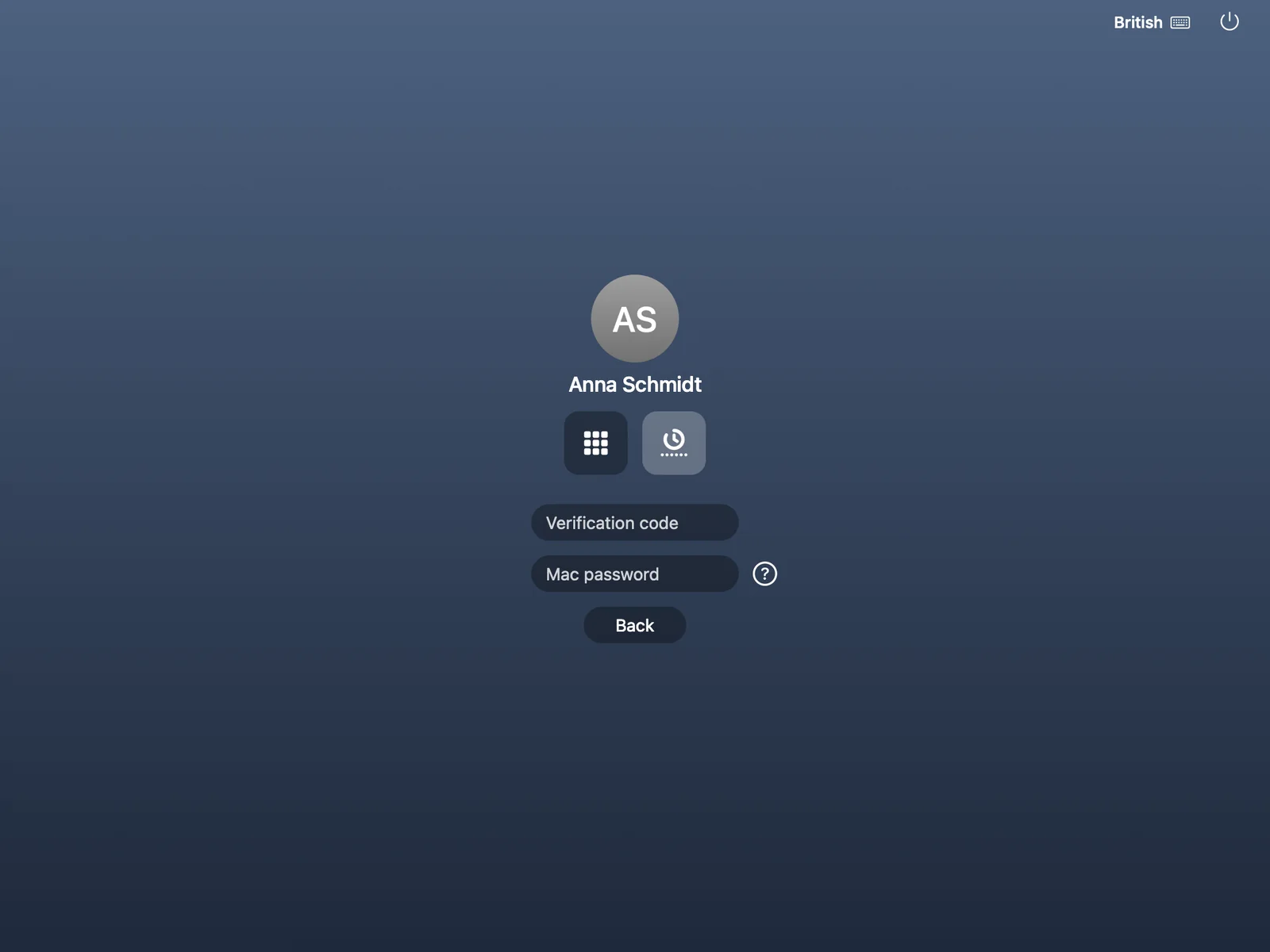
Your PC or Mac is the token: the grid is made by the Windows PC or Mac your people already work on. An authenticator app or a security key works too if they already have one. Nothing to buy, nothing to hand out.
Your PC or Mac is the token.
A grid from your own PC or Mac. Secret Squares in your head, a grid from your own Windows PC or Mac. The grid changes every 30 seconds and every code works once. Try it.
- Your squares, in your order
- 6 squares chosen
- Your code right now
Google or Microsoft Authenticator. Any authenticator app with one-time codes (OATH/TOTP) works if your people already use one. Optional.
FIDO2 keys and passkeys. FIDO2 security keys (USB or NFC) with a PIN or fingerprint for those who already own one. Plus passkeys in the browser.
Insert or touch the key
Twin Verify in a minute and a half
See how a user signs in, how the grid works and how little there is to hand out.
Read the transcript
Remember six squares, in your own order.
The grid changes every thirty seconds. Your Secret Squares stay the same, so the code is new every time.
The grid is made by your own PC or Mac. That's your token. Any other computer has to be linked or approved before it counts.
And a code that's been seen is worth nothing. Each one works once.
No hardware tokens to hand out. No private phones.
Three ways to prove it's you. The grid, on your own computer. Google or Microsoft Authenticator. Or a FIDO2 security key. Just tap it.
Windows, Microsoft 365, your Mac: the same three ways to sign in, everywhere. Secret Squares at the desk, an authenticator code in Microsoft 365, a security key at home. Your VPN and your other apps use them too.
And IT sees every device and every sign-in.
One login. Every app. No tokens.
Verified.
Twin Verify. Your device is the token.
The problem
Everyone wants a second factor. Nobody wants the extra work.
Multi-factor authentication is a must today. Many solutions only move the effort to you and your users.
Hardware tokens
Buy them, hand them out, replace the lost ones, collect them when people leave. For every single person.
Private phones
Many organisations do not want to oblige their staff to use a private phone, and many staff do not want to either.
Complicated sign-in
If signing in takes a second device and several steps, people look for ways around it. A security measure that is switched off protects nobody.
The idea
Your device is the token.
Twin Verify turns the computer people already work on into their second factor. No second device, no app, no extra hardware.
Something you know
Each user remembers a few squares and the order they chose them in. Humans are good at remembering shapes and sequences.
Something you have
The numbers in the grid are calculated from the identity of the user’s own PC, Mac or browser. Nobody else can show the same grid.
Two factors
The user’s squares, read from the current grid in their secret order, give a code. Knowledge plus the linked device: two factors, and nothing to hand out.
Changes every 30 seconds
The grid is new every 30 seconds. A code that was typed a moment ago is no use to anybody.
Every code works once
Even a code that is seen or intercepted cannot be used a second time.
Works offline
At the Windows logon the grid is available without a network connection, so laptops on a train still sign in.
You decide which devices count
Per customer: open, first use (the default) or approval required. Users can approve a new computer or browser from one they already use.
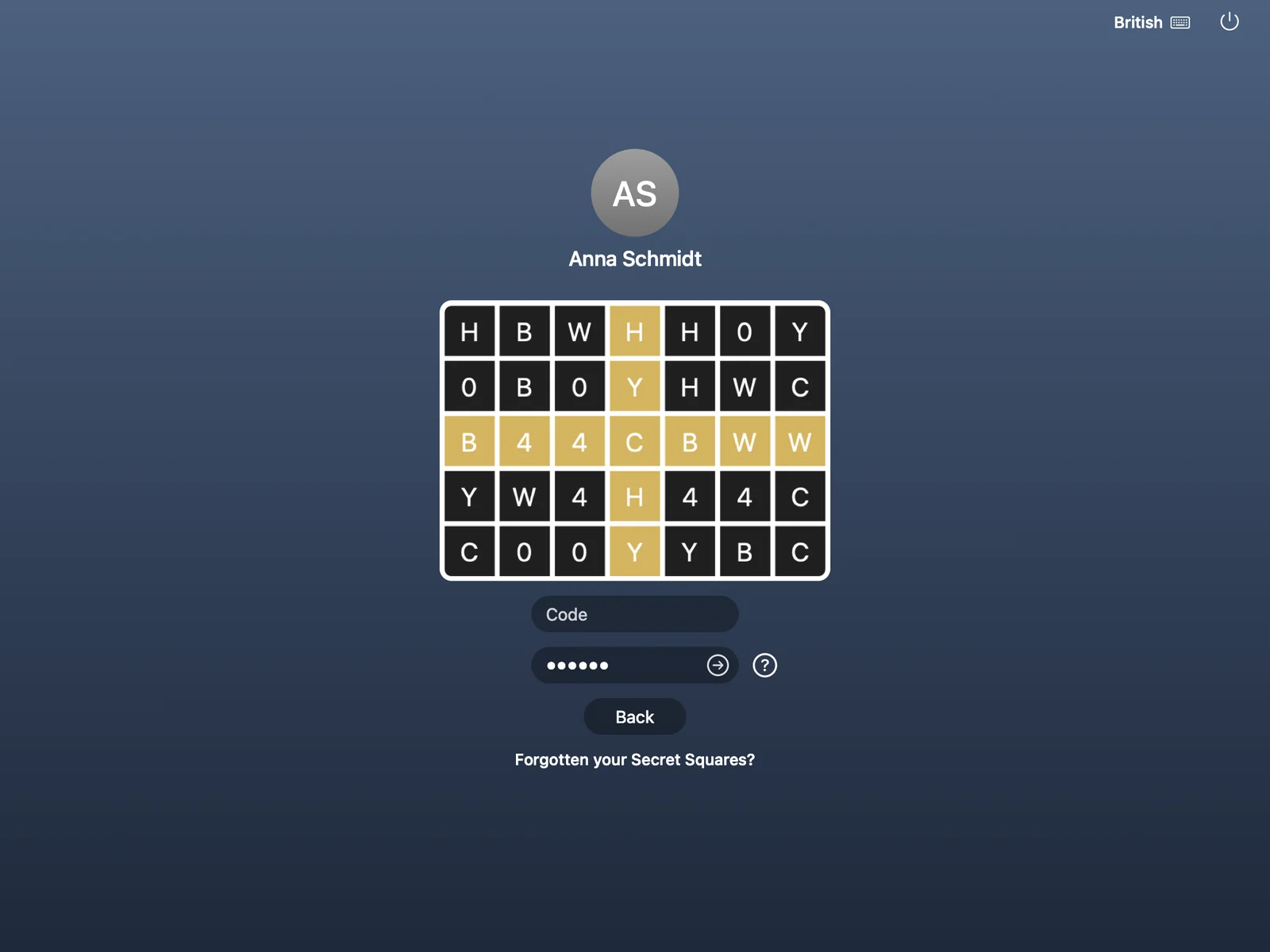
How Secret Squares work
Try the grid
Secret Squares in your head, a grid from your device: the method that needs no extra hardware at all.
- Choose your squares
On first use, a short wizard asks the user to click a few squares in an order only they know. A square may be chosen twice, a straight line is not allowed, and your organisation sets the minimum. The chosen squares stay secret.
- The device shows a grid
The characters in the grid are calculated from the identity of the PC or browser (HMAC-SHA512, keyed by the device’s ID) and change every 30 seconds.
- The squares give the code
The user reads the character in each of their squares, in the order they chose them, and types them as the code. The gold cross on the grid is just for orientation. Every code works once.
- Signed in
Password or not: with Secret Squares and the linked device the user has proved two factors, right at the familiar login window.
- Your squares, in your order
- 6 squares chosen
- Your code right now
Click squares in an order only you know. The code is the character in each chosen square, read in that order. The gold cross is only there for orientation.
Simplified illustration. In the product you choose a few squares in a secret order (a square may be used twice, your organisation sets the minimum, a straight line is not allowed). The grid changes every 30 seconds and every code works only once. Here it changes every few seconds so you can see the same squares give a new code.
The advantages at a glance
MFA is no longer optional. It should be as easy for users as it is for you to run.
No second device
The second factor is entered right at the familiar login window.
Easy integration
Twin Verify is linked to your Active Directory (or Entra ID and Microsoft 365). Rollout is straightforward.
Brute force goes nowhere
A guessed or stolen password is not enough: without the grid code the sign-in fails. Help desks can see and control lockouts.
Scales with you
Whether you have 10 or 10,000 workstations: silent install, enrolment keys and a multi-tenant console keep the rollout light.

Microsoft 365 and single sign-on
Microsoft 365 with the same sign-in methods as your PC
Twin Verify is also an identity provider. Entra ID uses it as an external authentication method or through domain federation, with the same Secret Squares, authenticator app or security key your users already use. Your other apps connect through OpenID Connect and SAML.
- As an external authentication method in Entra ID, or by domain federation
- The same sign-in methods across Windows, Mac and Microsoft 365
- Secret Squares, authenticator app or security key right at the Microsoft sign-in
- User sync with Microsoft 365
- Plus OpenID Connect and SAML, with an app launcher and hundreds of application templates



Sign-in methods
Use what people already have
Secret Squares come first. If your users already have an authenticator app or a security key, they can use it too.
GRID
Secret Squares
Squares only you know, a grid from your device. The method that needs nothing else.
OATH
Authenticator app
Google Authenticator, Microsoft Authenticator or any other authenticator app. Optional.
FIDO2
Security keys and passkeys
FIDO2 security keys with PIN or fingerprint for those who already own one. Passkeys in the browser.
Help-desk access code
A temporary 10-digit code gets a user back in without waiting for a replacement.
Platforms
Every platform your people work on
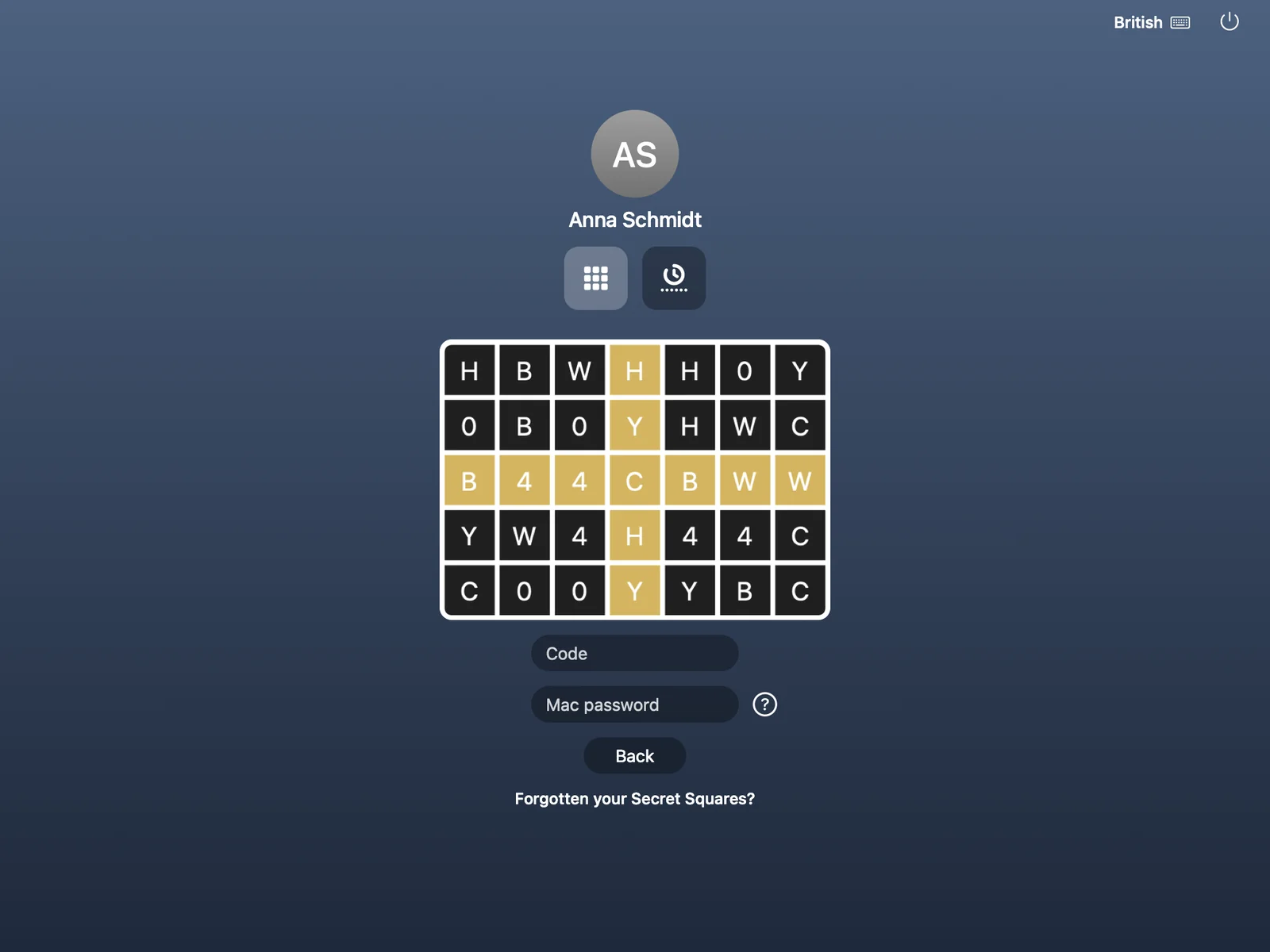
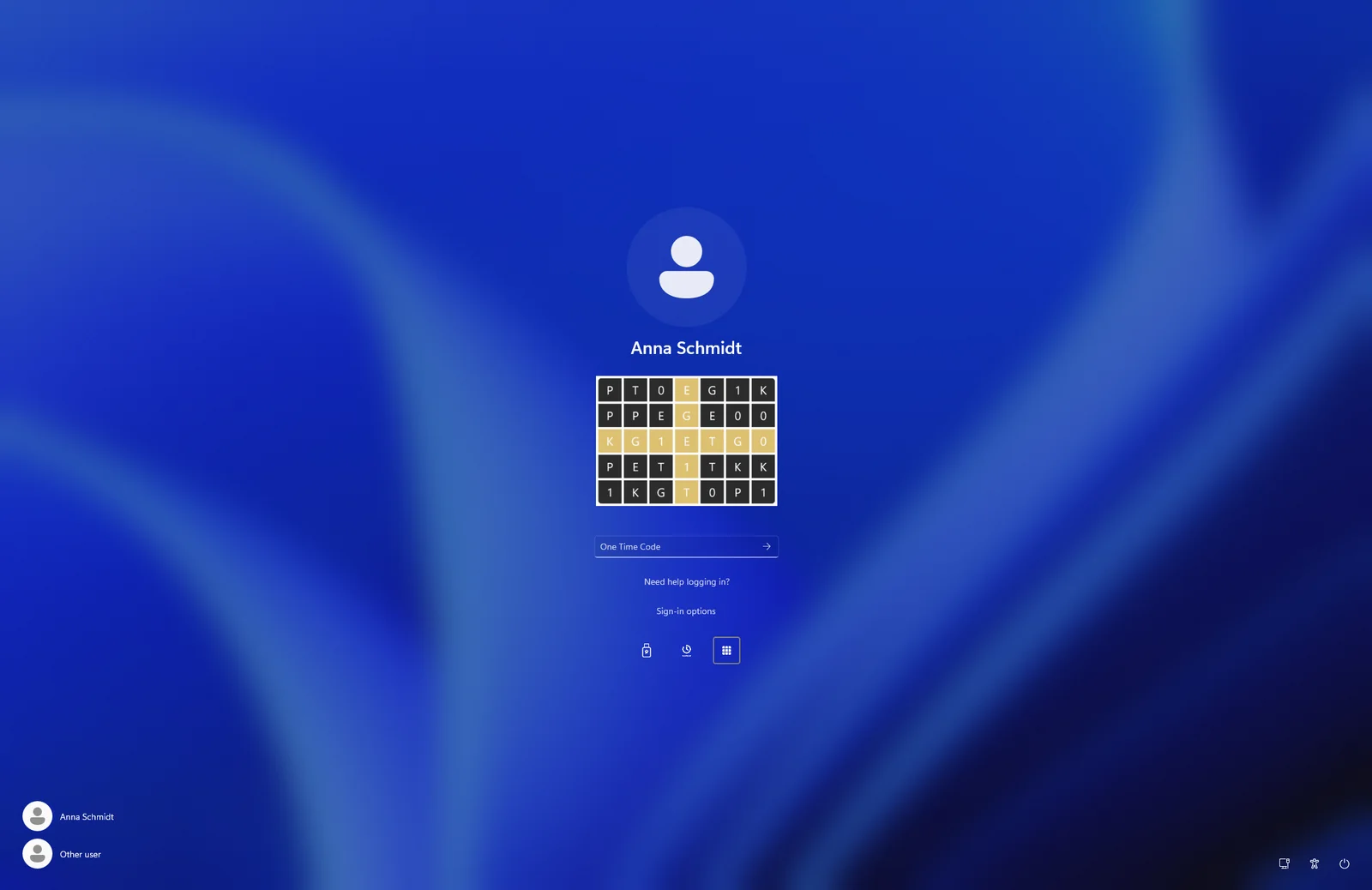
One product for Windows, Mac and Linux, with the sign-in at the place where people really log on.
Windows
Windows 10/11 and Server 2016 and later: logon, unlock and Remote Desktop, also offline.
macOS
The Mac login window and a menu bar app with "Show grid", password change and more.
Linux
SSH, sudo and su through RADIUS. No extra hardware, no extra device.
RADIUS & VPN
VPN, firewalls and Wi-Fi with the same second factor
Anything that speaks RADIUS can ask Twin Verify. The code comes from "Show grid" on the user’s own PC or Mac, or from an authenticator app.
- Challenge, password plus code in one field, or code only
- Password check against Active Directory
- Per-client groups and reply attributes such as VLAN
- Protection against Blast-RADIUS (CVE-2024-3596)

For IT and MSPs
Built to be run
One multi-tenant console, directory sync, a help desk that can really help and an install that fits your RMM.
Multi-tenant console for MSPs and their customers
Active Directory, Entra ID and Microsoft 365 sync
Temporary access codes, resets and device approvals
Password Protector: breached-password check
Your own branding for MSPs
Silent install through your RMM
Rolled out in three steps
This is how an optimal rollout of Twin Verify works. Twin Verify is available from Falcon Secure and its MSP partners.
Preparation
Talk with your users about how signing in will work from now on. Explain the security benefits with examples. Start by testing with one user.
Rollout with Falcon Secure
Falcon Secure and its MSP partners roll Twin Verify out to your selected users: one install step with an enrolment key, or silent through your RMM.
Technical support
If a problem still comes up, Falcon Secure and your MSP partner support you.
 (opens in a new tab)
Available through Falcon Secure and its MSP partners
Twin Verify is available from Falcon Secure, the IT security platform for MSPs, and from its MSP partners. If you wish, we are on the phone during set-up so that nothing can go wrong.
Frequently asked questions
Short answers. For everything else, write to us.
Do my staff need a smartphone or a hardware token?
No. With Secret Squares the second factor is the PC, Mac or browser the user already works on, together with the Secret Squares the user remembers. If someone already has an authenticator app or a FIDO2 security key, they can use that as well, but nobody has to.
What if the computer has no network connection?
At the Windows logon sign-in works offline, from an encrypted cache on the PC. Authenticator apps and security keys work offline there too.
What if someone forgets their Secret Squares?
Users can choose new Secret Squares themselves: at the Windows logon screen with a code sent by email. The help desk can also issue a temporary 10-digit access code.
Can we use Google Authenticator or Microsoft Authenticator?
Yes, as an option. Any authenticator app works at the Windows logon, for RADIUS and VPN, and for web sign-in. Users who own a FIDO2 security key (USB or NFC, with PIN or fingerprint) can use it too.
Which systems are supported?
Windows 10/11 and Windows Server 2016 and later (logon, unlock, Remote Desktop), the macOS login window, and Linux through RADIUS (SSH, sudo). VPN, firewalls and Wi-Fi through RADIUS, and web applications through single sign-on.
How does it work with Microsoft 365?
Twin Verify can be an external authentication method in Entra ID, or your domain can be federated to it. Users sign in to Microsoft 365 with the same methods as at the PC: Secret Squares, an authenticator app or a security key.
How do we roll it out?
Install in one step with an enrolment key, or silently through your RMM. Falcon Secure and its MSP partners do the rollout with you and support you by phone if you wish.
Where is the data kept?
Twin Verify can run as a hosted service, and an MSP can also operate the data store itself. Tell us your requirements and we will go through the options with you.
Which licences are there?
Lite (Secret Squares for Windows and Mac, authenticator apps), Pro (Lite plus single sign-on, security keys and web sign-in) and the Password Protector add-on. We are happy to prepare an offer.
Ready for a sign-in people do not work around?
Tell us about your organisation and we will show you how Twin Verify fits. Write to us or call us.